Custom Reporting – Limit Viewing A Report By A Task
This article applies to version 4.0.16 of iHRIS and later.
You can limit displaying a report (a report view) to certain users by assigning a task to a report view. This is a three step process.
In the example below, we go through the three steps where we want to limit viewing the facility list to the “Executive Manager” role.
Step 1: Create A New Task
The first step is to create a new task which requires the [[#Enabling the Tasks and Roles Module | Task and Roles module to be enabled]].
One the Tasks and Roles module is enabled do the following:
Click “Configure System”
Click “Tasks Roles”
Click “Administer Tasks”
Scroll down to the bottom of the page
Once you have scrolled down to the bottom of the page, you can create a new task. Here we create a task with:
The Name set to “view_facility_list_report”
The description set to “Task to restrict access to the facility list report”
Step 2: Assign The Task To A Role
Now that we have created a new task for the report, we need to assign it to the use roles that we are interested in.
Click “Configure System”
Click “Tasks Roles”
Click “Administer Roles”
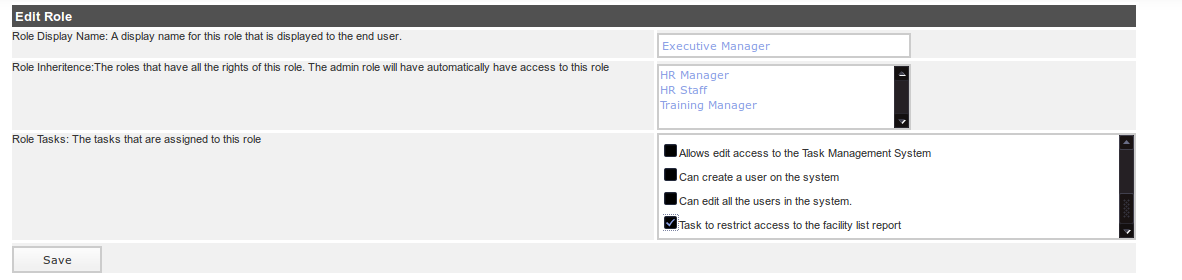
Click on the role you are interested in, in this case it is “Executive Manager”
Under “Role Tasks” select the task you just created: “Task to restrict access to the facility list report”
‘’‘Warning’‘’: In versions prior to *4.0.17 the “Role Tasks” field is a “multiple select”. In order to select the task you will need to:
**scroll through the selection list until you find the task
hold down the **[CTRL] key
**click on the task
release the **[CTRL] key
**If you do not hold down the control key, you will de-select all of the other tasks already associated to that role. If you do so accidently, reload the page before you click the “Create” button
*In version starting with 4.0.17, there is an easier to use check box list for each of the tasks assigned to the roles. Simply check the checkbox next to the role
Click the “Create” button
Repeat this for each role you want to allow to view the report.
Step 3: Assign The Task To The Report View
We can now assign the task to the report view we are interested in restricting access to.
*Click “Configure System”
*Click “Report Views” under “Manage Reports”
*Select the task “Task to restrict access to the facility list report” under “Report View Permissions”
*Click “Update”
Now, only the users with the role “Executive Manager” can see the facility list report.

Enabling the Tasks and Roles Module
To enable the tasks and roles module, which allows you to edit tasks and roles via the web interface, follow the following steps:
Click “Configure System”
Click “Configure Modules”
Click on “Sub-Modules” to the right of “Pages”
Select the “Roles and Tasks” module
Click “Update”