Installing on Mini-Box
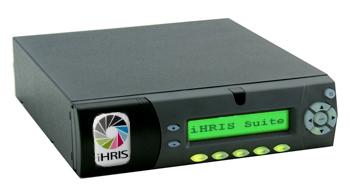
These are installation notes for getting the ` mini-box <http://www.mini-box.com/M200-LCD-Enclosure?sc=8&category=87>`_ LCD appliance up and running with Ubuntu Server 32-bit 9.04 (Jaunty) wth an processor and making use of the menuing system.
This document covers installation of Ubuntu and the bits of software to control the LCD Panel on the iHRIS Appliance. For information on installing the iHRIS Suite itself (including a full LAMP stack) see [[Installing the Debian Packages]]
<center><videoflash>6h79JeTiSQg</videoflash></center>
LCD Keypad
USBLCD Reader
- First create a user ‘lcdmenu’ that can’t login:
sudo adduser –disabled-login –gecos “” lcdmenu
Download and build the SDK or at least just what it includes usblcd-src . Install ‘usbread’ into the /home/lcdmenu/bin. To build it you will need to do this:
- sudo apt-get install autoconf gcc-4.1-base gcc-4.1 gcc make
automake binutils binutils-dev libtool libusb-dev libhid-dev bzr
cd ~lcdmenu sudo -u lcdmenu bzr branch lp:lcdmenu bin cd ~/ wget http://www.mini-itx.com/store/information/usblcd/usblcd-src-0.1.4.tgz tar -xzvf usblcd-src-0.1.4.tgz cd usblcd-0.1.4 rm src/Makefile.am lib/usblcd.c ln -s ~lcdmenu/bin/usblcd.c lib/usblcd.c ln -s ~lcdmenu/bin/Makefile.am src/Makefile.am ln -s ~lcdmenu/bin/lcdmenu.c src/lcdmenu.c ./autogen.sh ./configure sudo make install sudo ldconfig
Now we want to change the splash the screen at boot-up
sudo usblcd splash ~lcdmenu/bin/splash.txt
Automount
The LCD Menuing system has a “backup MySQL database to a flash drive” feature. Since we will not be using GNOME, we will need a USB automounter:
sudo apt-get install usbmount
Then edit the file /etc/usbmount/usbmount.conf and add “vfat” to the FILESYSTEMS e.g:
FILESYSTEMS=”ext2 ext3 vfat”
then make sure the FS_MOUNTOPTIONS line has at least:
FS_MOUNTOPTIONS=”-fstype=vfat,gid=lcdmenu,dmask=0007,fmask=0117”
Power Button
Make sure acpid is installed and running and change /etc/acpi/powerbtn.sh to suit your needs. I suggest you just make it the following:
test -f /var/lock/acpisleep && exit 0 /sbin/shutdown -h now “Power button pressed”
Checking Network Status
The MAC Address, to configure your router, can be obtained from the LCD Menu:
>F1:Server Status >F2:Network Status >F3:MAC Address
Similarly, if you have plugged the server into a network with DHCP, you can get the IP Address:
>F1:Server Status >F2:Network Status >F3:MAC Address
Other Configuration
GDM
- In case you have GDM installed, let us have it not boot on startup. Note, you can now turn gdm on/off via the LCD Menu.
sudo update-rc.d -f gdm remove
UPS
Install nut and follow these directions as well as whatever is available on the home page of the nut package. nut is built for network access to a UPS but seems to be the most up-to-date package available.
Webmin
See this webmin installation guide or just cut and paste:
- sudo aptitude install perl libnet-ssleay-perl openssl
libauthen-pam-perl libpam-runtime libio-pty-perl libmd5-perl
wget http://garr.dl.sourceforge.net/sourceforge/webadmin/webmin_1.530_all.deb sudo dpkg -i webmin_1.530_all.deb
Browse to:
and login as the user you created on Ubuntu installation.
Mail Server
We don’t want our box to be the general mail server for the network. There is a mail server, postfix, installed by default on Ubuntu We will want to set the mail server to relay email to some other place.
- First we need to do:
sudo apt-get install postfix
- Then select
Satellite System //the type of system somewhere.org //the name of your organization smtp.somewhere.org //your smtp server to relay mail to
The above assumes that smtp.somewhere.org is an open relay which is probably not the case.
You will probably need to set Postfix up for SMTP Auth
As an alternative here are some instructions for forwarding to a gmail accout .
RAID
Although we will intend to run this box without a monitor for the moment we will plug in the monitor to install Ubuntu from a USB-CDROM. Make sure the BIOS is configured to boot from the CD-ROM. Also, under Peripheral Devices you will need to enable all legacy support (or it will hang on installation).
For a flash drive, apparently Josh has had some success following these directions .
- We will do a Software Raid .
Warning: do not create the filesystem as ext4 as it will hurt mysql very badly .
Once it has been setup, we need to monitor it using mdadm:
- To do this:
sudo dpkg-reconfigure mdadm
- Please enter the following:
Yes: periodic, monthly checks of the array Yes: MD monitoring daemon someone@somwhere.org: Email address for monitoring Yes: Start with degraded array